Event Manager eSolutions

The eSolutions Event Manager offers a calendar-based visualisation of all planned events and enables price levels to be switched across locations - both on a one-off basis and regularly via serial dates.
use eSolutions Event Manager
The eSolutions Event Manager is located in the SOT / Webshop module and can be accessed there via Settings.
The Event Manager has a table in which all created events are displayed. In this table you can:
-
Show events,
-
sort,
-
delete if required.
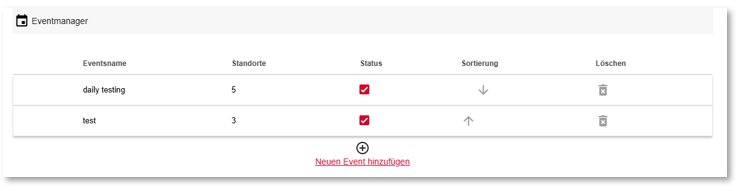
Set prioritisation
You can use the arrows in the Sorting column to set the prioritisation. The highest priority is at the top, the lowest at the bottom.
Calendar control
The integrated calendar visualises the events accordingly. The following functions are available for the calendar:
-
Filter location and order type - the data is displayed according to the selected parameters,
-
Convenient scrolling through the months with "forwards"/"backwards" arrows.
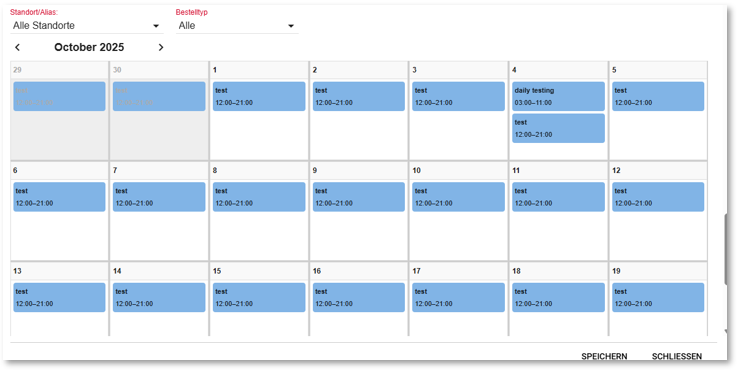
Creation of an event
In the separate dialogue for creating an event, you can:
-
Enter an event name (mandatory field),
-
Activate and deactivate events (when a new event is created, it is always active and cannot be deactivated when it is created).

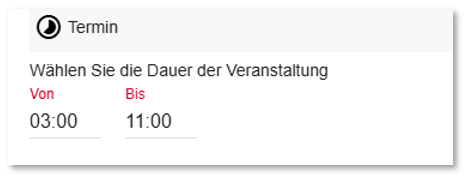
In the Appointment section, specify the time in the format from / to.
Three selection tables are available:
-
Location/alias - one or more locations can be selected. For the location selection table, there are the options of selecting all locations at the same time or cancelling the current selection.
-
Order type - one or more order types can be selected
-
Price levels - only one price level can be selected per event (when creating and editing)
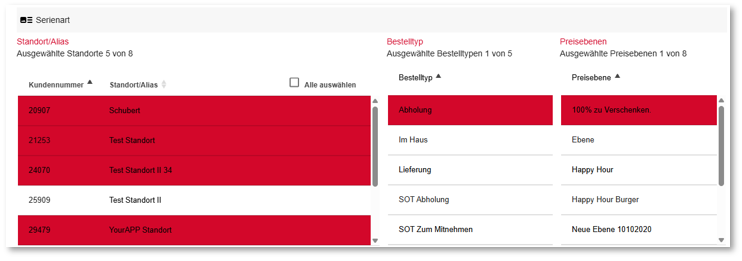
The locations are available for selection in the list on the left. you can then select the order type and determine the price level to be activated.
Configure the series interval of the event
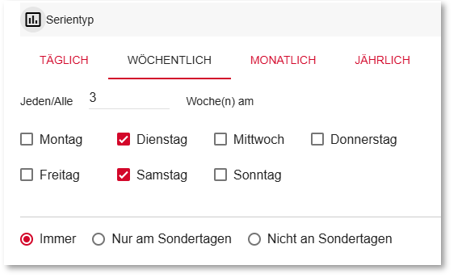
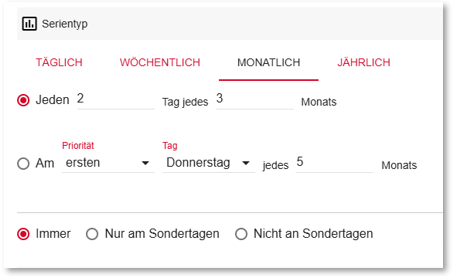
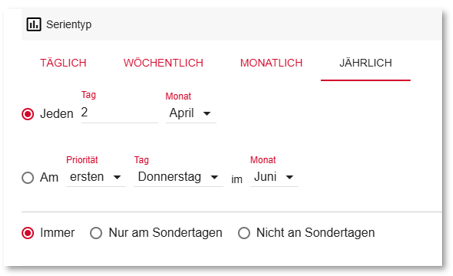
The Daily, Weekly, Monthly and Yearly tabs are available for setting the series interval:
Example :
You first select the series interval between daily, weekly, monthly and yearly. Then enter the interval in days (after how many days the event is repeated) for daily, for example.
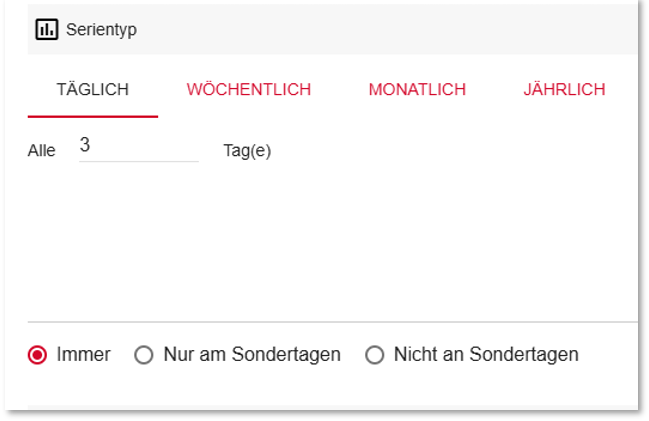
You can also select the days on which the event is taken into account: Always, Only on special days or Not on special days. Special days are defined in the POS Event Manager.
Further topics: Apply event manager POS
The display varies according to the selected interval type:
Limit series duration
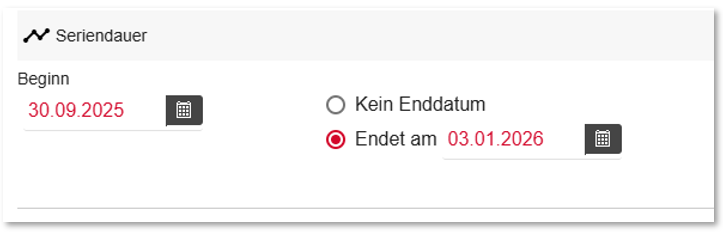
In the Series duration section you can:
-
set the start of your event,
-
to select whether it has a specific duration or remains without an end date.
Back to the overarching topic: Event manager control