Register Recovery
Restore refers to copying the data from the backup to the location where it was created. A backup represents the information at the time of its creation. All subsequent changes - even positive ones - are replaced by the data backup on recovery.
When restoring data, you must make sure that the existing programme version matches the data you are restoring. If necessary, your backup will contain the appropriate programs. A setup of the programs is not replaced by a data backup.
In addition, the option to create data individually from a backup can cause data within the Hypersoft Suite to be incompatible with other data.
For these reasons and for orientation, the data backup also contains information about the program version with which it was created.
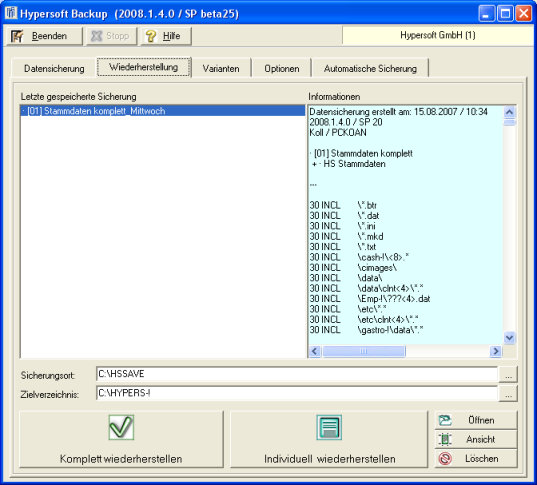
| Element / Switch | Function / Description |
|---|---|
| Last saved backup | This list displays the existing data backups, starting with the most current one. The list refers to the contents of the backup location. |
| Information | When you select a backup, you will see all the details of its creation in the Information pane. |
| backup location | The backup location is the location where the data backup is located. |
| target directory | The target directory is the location to which the restore will take place. Standard is (C):\Hypers-! . |
| Completely restore | The button Restore complete copies the complete data backup to the target directory. All changes to files or directories of the same name are overwritten. Missing files or directories will be replaced. If other files, directories or structures are present at the destination, they remain unchanged from the process. |
| Restore individually |
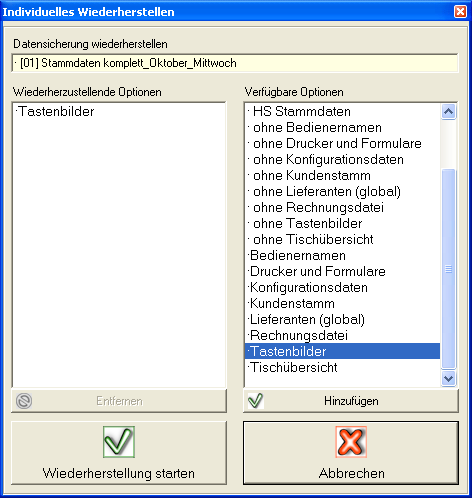
You can use the Restore individually function to select the objects to be restored. To do this, you receive a dialog in which you are offered options for selection.
Use Add to move the Available options to the list of optionsto restore. These options are executed with the Start Recovery command. Rejecting options are also available as options. For example, you can select All + without user name + without customer master because you have edited user names and customers since the last backup and these data are still intact. |
| Open | Opening the data backup is normally not necessary and only suitable for experienced users. This gives you a view of all the files involved in the backup. |
| view | Displays the contents of the backup with detailed information about the files. |
| Delete | You can delete backups that you no longer need by selecting them from the list and pressing the Delete button. |
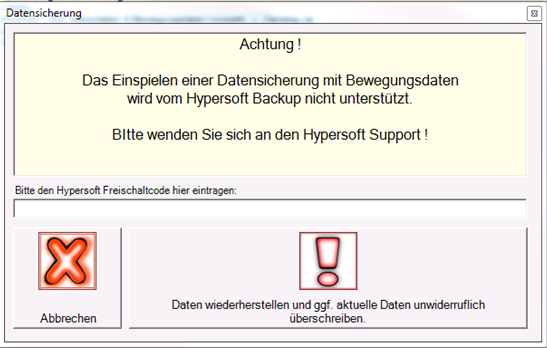
See the HS-SSP document for the GoBD/GDPdU if you want to restore data backups of posting journals. The system requires Hypersoft support for this requirement.
Back to the overarching topic: Integrated data backup