Customer base default settings
Default settings apply, for example, to registration, the assignment of master data such as discounts and the assignment of master data for customer data that has already been entered.
Default settings for registration
Configurable query fields in the portal
In the portal, you can specify which user data should be requested during registration. This configuration makes it possible to customise the input screen specifically to the requirements of the respective business - similar to the settings in the checkout process for customer data.
Registration procedure
Navigation by the user:
Call up register
Enter e-mail and password
Click on the confirmation link from the e-mail
Fill in the data form
The recorded data is then saved in the user profile.
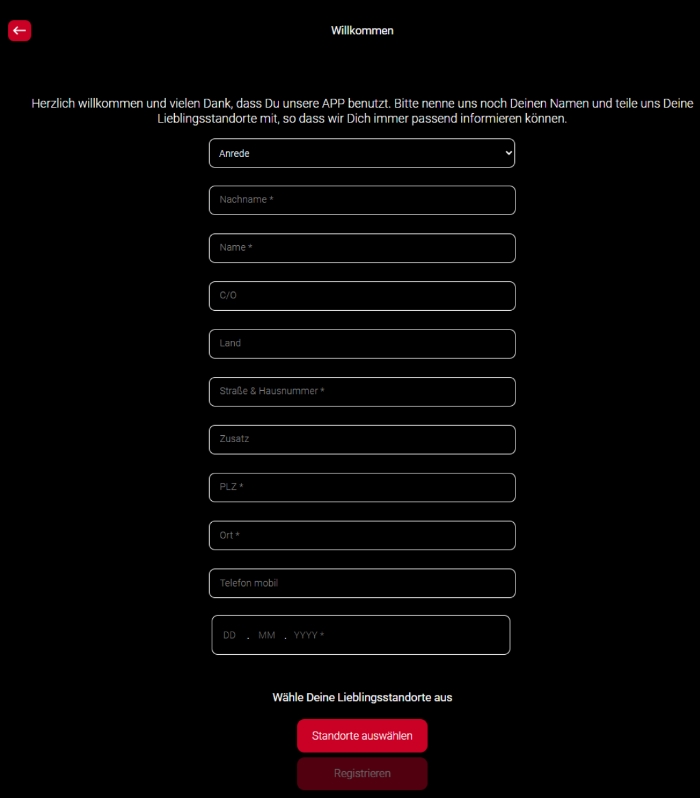
Configurable input fields
The following data fields can be optionally displayed during the registration process and defined as mandatory or optional:
-
Prefix (salutation o. ä.)
-
First name
-
Surname
-
c/o
-
Address
-
Addition
-
Postcode
-
City
-
Country
-
E-mail
-
Telephone number 1
-
Telephone number 2
-
Mobile phone
Validation behaviour
Depending on their configuration, the input fields behave as follows:
Setting Behaviour during input
Mandatory field: Validation is carried out according to predefined rules (e.g. telephone number format, valid e-mail).
Optional: No content check, except: max. 200 characters, field may remain empty.
Incorrect entries are automatically flagged by the user interface.
The Next button only becomes active if all required fields are filled in correctly.
Interaction with placeholders
The behaviour of the placeholders was designed in such a way that a clear input logic is recognisable:
-
When you click in a field, the placeholder is moved over the input field.
-
After the entry, the placeholder remains visible above to clearly label the field.
-
If you click again in an empty field, the placeholder appears again in the input field.
This behaviour ensures that users can always see what information has been requested, even if the fields have already been filled in.
Default settings for master data settings
The "Discount / Price level / Characteristics" section is available in the dialogue for customer creation or editing. Standardised settings for newly created customers can be defined here.
How the switches work
The section consists of three areas that can be activated:
-
Discount
-
Price level
-
Features
The corresponding input field is enabled by activating a switch. When deactivated, the respective field is locked and reset to a default value when saved.
Preset values when saving...
Setting Default value with deactivated switch
-
Discount: 0 %
-
Price level: "Standard"
-
Features: The list is emptied; no characteristics are transferred
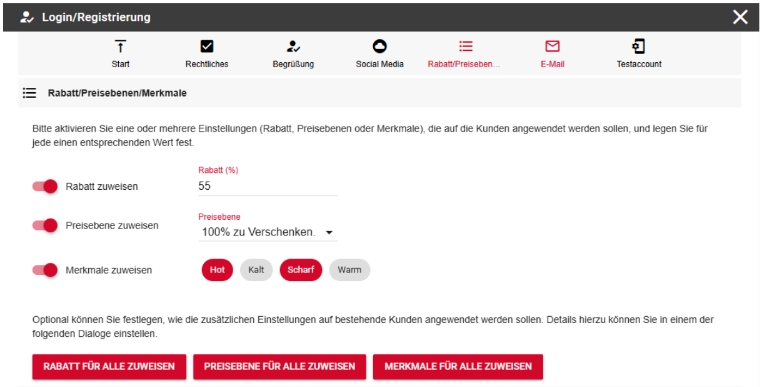
Application to existing customers
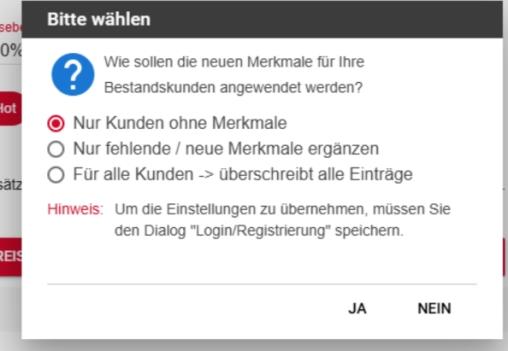
The "Assign discount, price level or features for all" button can be used to specify whether and how the current settings should also be applied to existing (verified) customers.
Note: Characteristics are only adopted for verified customers. Assignment is not provided for non-verified data records.
Overview of the settings areas
Discount...
Enter in per cent (e.g. 10 for 10 %)
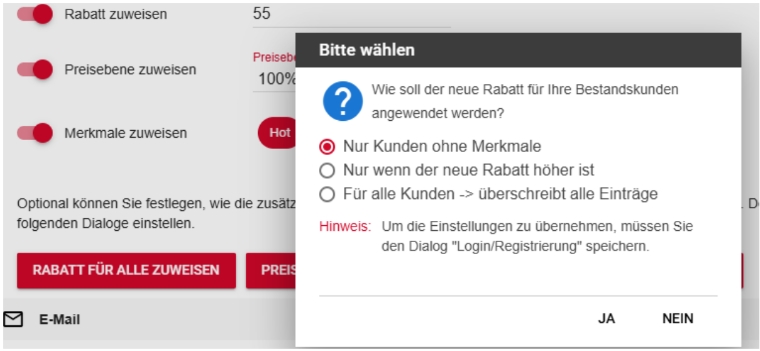
Applies to all processes triggered by the customer (depending on system configuration)
Price level...
Selection from the price levels configured in the system.
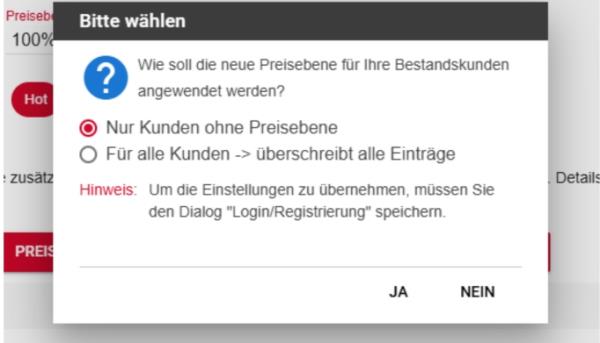
Price level influences the item prices in POS and webshop (depending on use)
Features...
Selection from active article features (e.g. "vegan", "spicy", "favourite cocktail" etc.)
Enables subsequent filtering and targeted evaluation
Back to the overarching topic: Hypersoft customer base