wallee eCommerce Onboarding
The payment methods in the Hypersoft Portal are used exclusively for Hypersoft Pay powered by Adyen. Please configure the desired payment methods of wallee within the wallee portal in the eCommerce Payment section and take into account the payment methods supported by our shop.
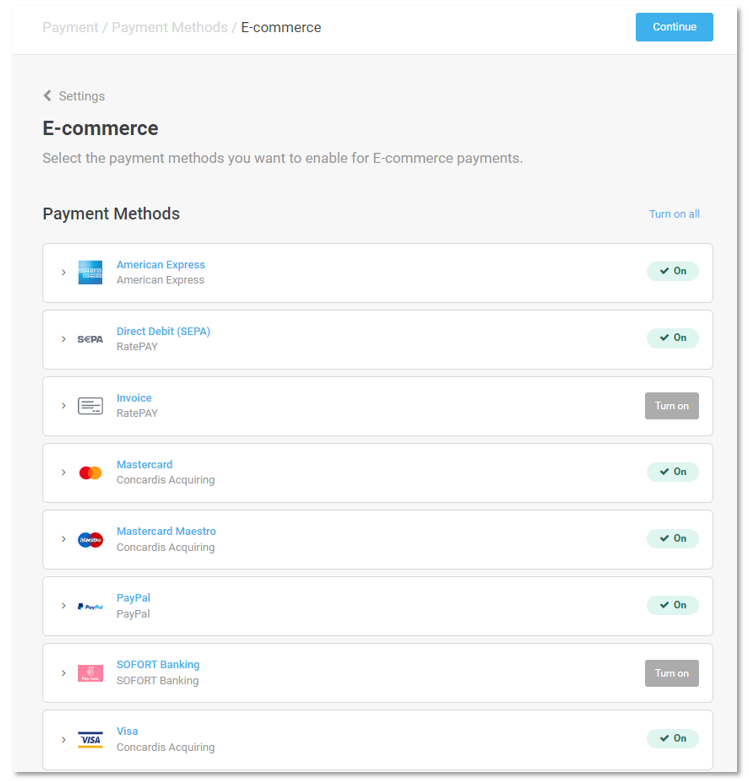
Supported payment methods...
The following payment methods can be used in the Hypersoft webshop. If you activate different payment methods in the wallee portal for eCommerce payment, these will be displayed in the webshop, but the user will receive an error message during the payment process.
-
American express
-
china union pay
-
Diners Club
-
Discover
-
jcb
-
Maestro
-
Mastercard
-
PostFinance card
-
PostFinance e-finance
-
powercard
-
Visa
-
Visa electron
-
Visa v pay
-
we
-
Alipay
-
Bank transfer
-
PayPal
-
paysafecard
-
reka
-
Instant Banking
-
TWINT
-
WeChat Pay
-
Apple Pay (Only available on iOS/ Apple hardware)
-
Google Pay (available from summer 2023 according to wallee)
Setup for wallee eCommerce in the Hypersoft Portal
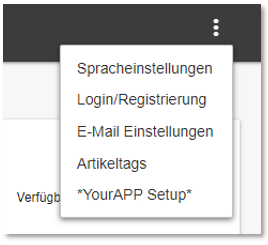
Select Dialogue & Access Data in the Hypersoft Portal Setup. In the *YourAPP Setup* (only accessible to Hypersoft employees), the desired payment provider and, in the case of wallee, the Space ID, the User ID and the Auth Key from the wallee portal must be stored for each location.

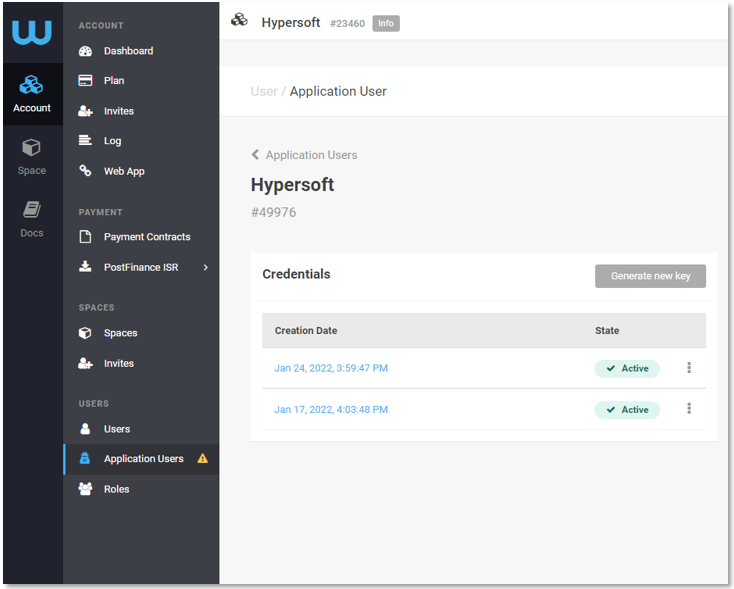
In the wallee portal, the Space ID, the User ID and the Auth Key can be viewed or generated under Account/ Application Users. The entry in Hypersoft is made without the hash "#" in front of the 5-digit number.
Set up Post Finance as a payment method with wallee
To add the PostFinance payment method to the other payment methods, the following steps must be completed in the wallee portal:
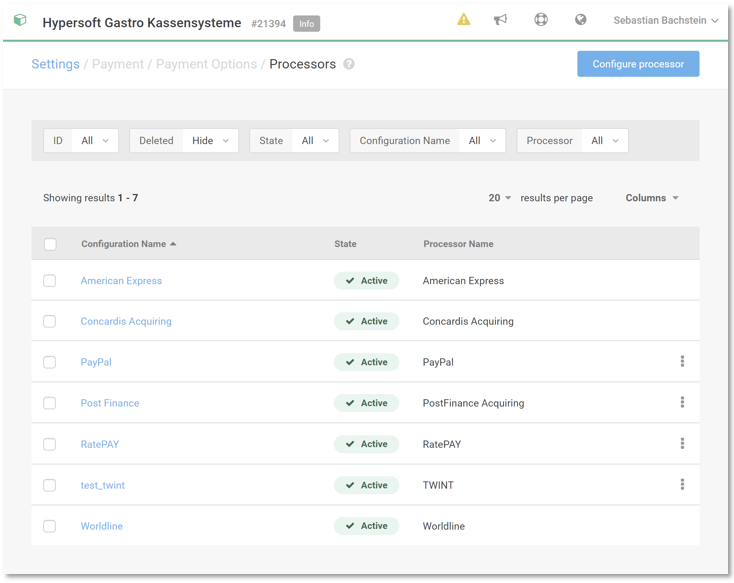
Call up the Processors via Space, Settings:
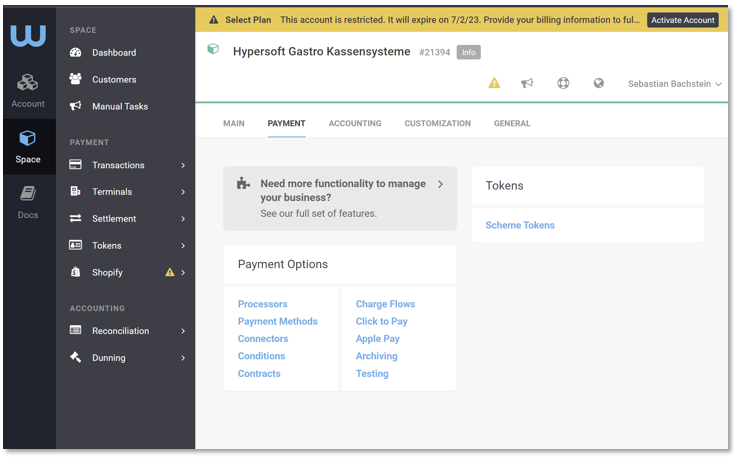
Select Configure Processor at the top right:
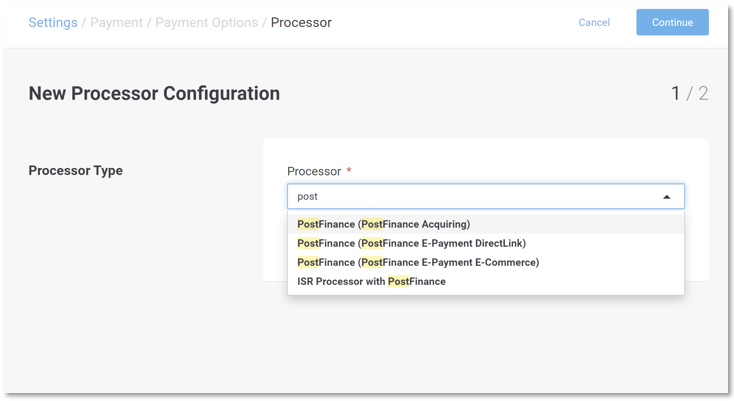
Select PostFinance Acquiring via the search and confirm with Continue:
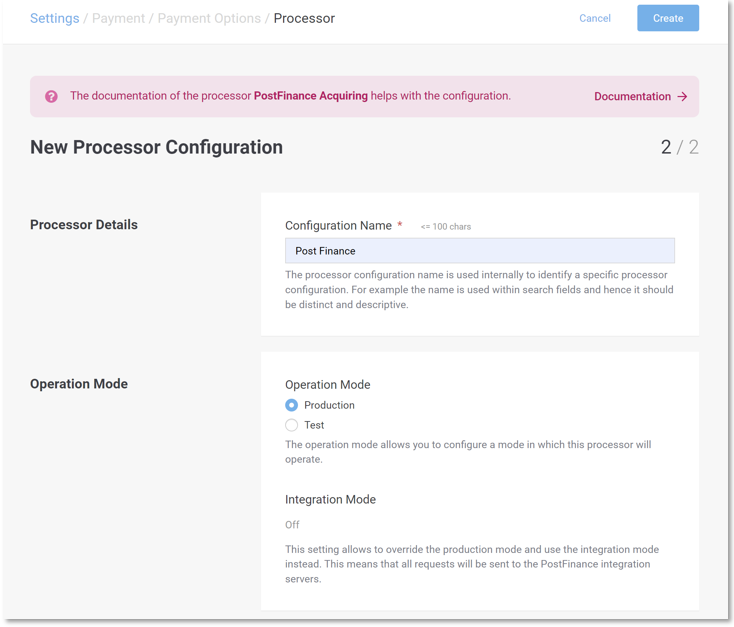
Enter the name, set it to Production and click on Create:
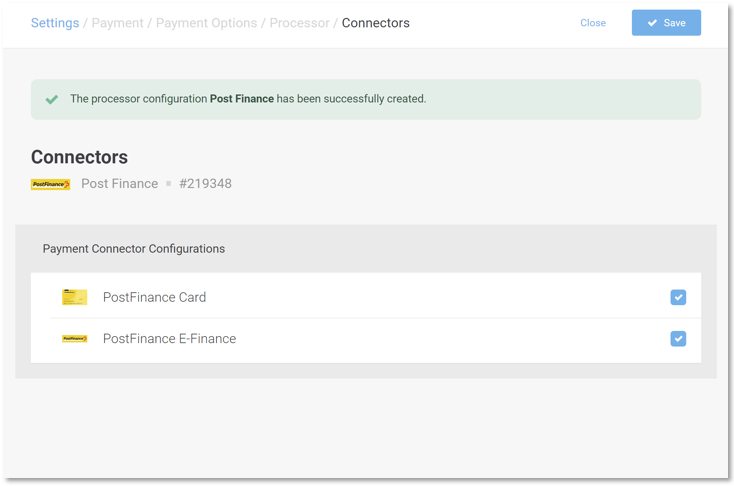
Select both connectors and press Save:
Adjustments to the "Lightbox" in the Wallee Portal
In our webshop we use the "Lightbox" integration from wallee. For this purpose, we call an instance of wallee within the webshop payment process, which carries out the payment process and returns the transaction status to the shop.
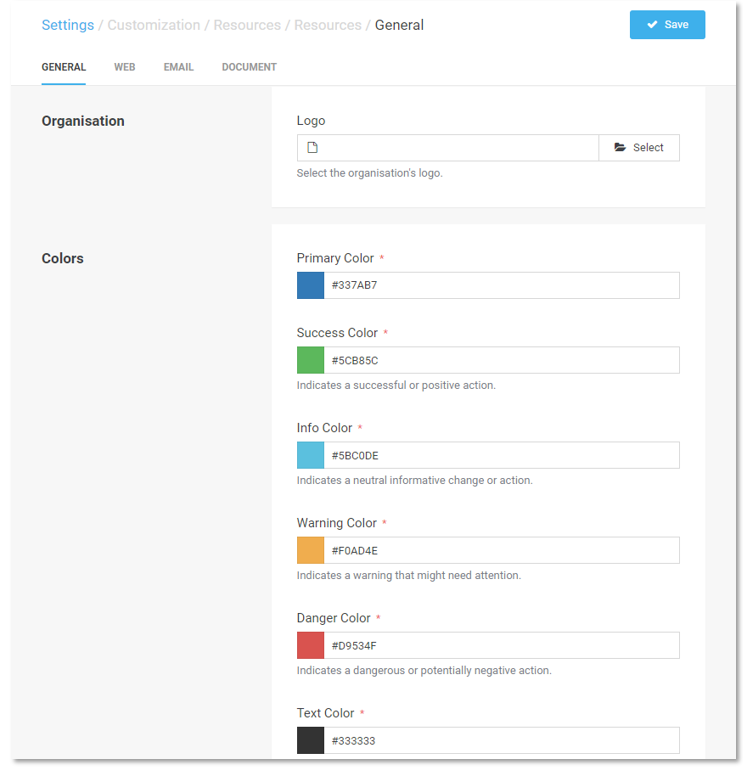
Please use the portal of wallee to adapt the "Lightbox" to your CI as well as the shop. You can access the settings under: Settings/Customisation/Resources/General.
Alternatively, Wallee offers this service as a service on request at the wallee hourly rate.
Deactivation of automated mails via the Wallee Portal
Wallee automatically sends invoice emails to the email addresses provided with an order. As these can be incomplete due to partial payments and do not correspond to the completeness of a NoCOO invoice, they must be deactivated in the Wallee Portal.
Navigate to the Dashboard of your Space
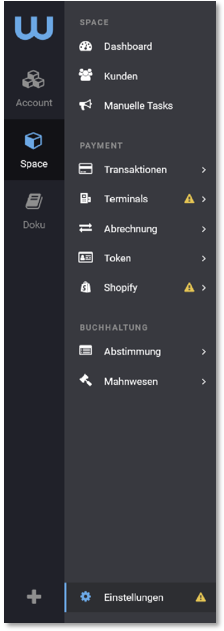
Click on Settings at the bottom left
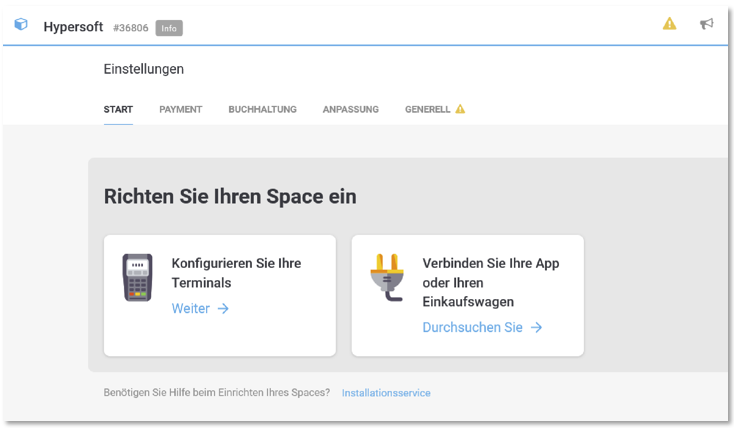
Click on the Customisation tab
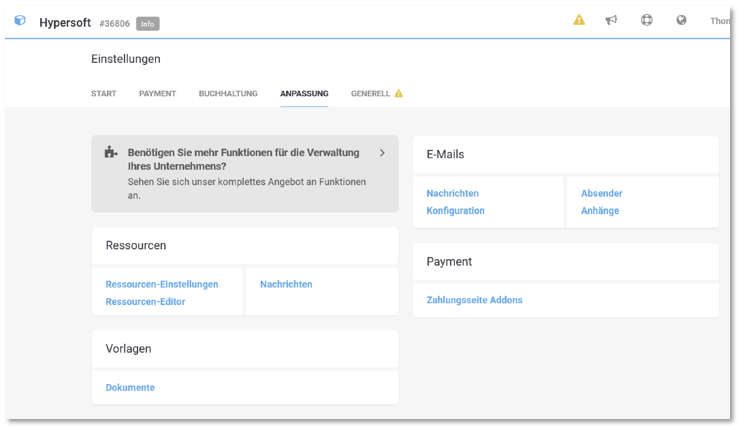
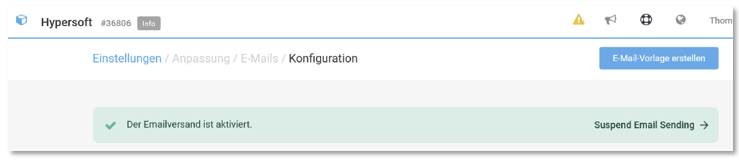
Navigate to the Emails container in the right-hand pane and click on Configuration
Click on Suspend Email Sending on the right side of the page
Data processing on wallee
See: Datenverarbeitung mit wallee
Back to the parent page: Hypersoft Pay with wallee