Journal for statistics - filters & formats
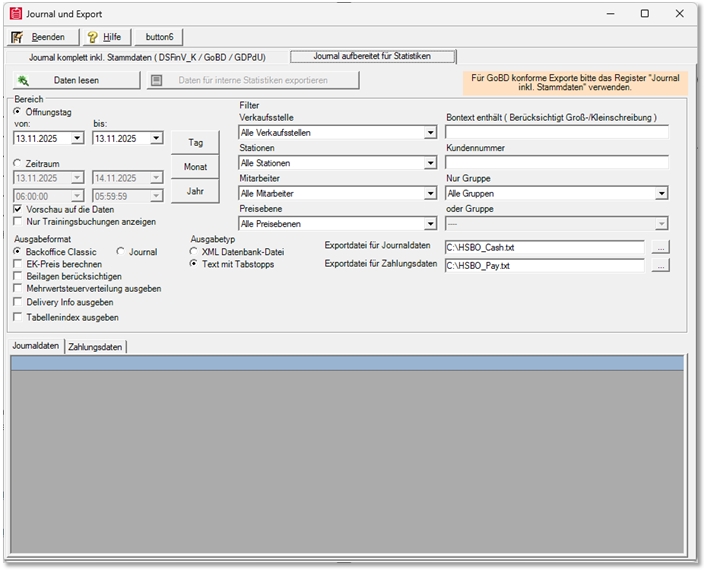
Purpose of this export
The export journal for statistics is used for the internal evaluation of sales and booking data.
It is not GoBD-compliant and therefore not suitable for tax audits or AmadeusVerify.
Typical areas of application:
Internal controlling analyses
Price and calculation analyses
Comparison of sales data over longer periods of time
Automation
The export can be carried out manually or automatically, e.g. as a scheduled task.
Further topics: automate export.
Important settings & filters
| Element / switch | Function / Description |
|---|---|
| Backoffice Classic |
The Backoffice Classic variant exports 4 (or 8) fields DEK / VEK / LEK / KEK (average EK, clearing EK, last EK, calculatory EK). For some time now, these values have been stored in the cash journal during posting in order to obtain historical analyses. These data do not include exports from longer periods in the past. In addition, in DEK% VEK% LEK% and KEK% the respective cost of goods sold is calculated and output as a percentage of the net sales. In this context, please also read the information in the Calculate purchase price section. |
| Opening day or booking day | Select the delimitation of the data between the two alternatives. There are also elements for setting a day, month or year. |
| Show only training bookings |
Used to export bookings made in training mode. Further topics: Hypersoft procedure for training mode |
|
Point of sale Stations Employees Price levels Bontext contains Customer number Group only or group |
These are filters whose settings reduce the output result when used. If you leave the setting at All..., the filters are inactive and all data is output. |
| Output format | Select the current Journal format. for compatibility with old exports, select Backoffice Classic. |
| Calculate EK price | Also determines the purchase price for export. This calculation requires considerably more computing time. |
| Consider inserts | The requested and selected components of the recipe items are also exported. |
| Spend VAT distribution | When activated, two lines are generated in the export for an article with VAT distribution, each with a halved number and the corresponding gross and net values. |
| Output delivery info | Special data for the analyses of Delivery. |
| Output table index | The radio button causes an additional field to be included in the export. The field is labelled "TabIndex" and corresponds to the ID from the payment table. This makes it possible to differentiate between the same payment types within one transaction (e.g. two EC card payments within one transaction using split invoices), |
| View of the files after importing | With this option, the result is initially displayed in the list. Switching off this option can speed up the process. |
|
Output type |
Choose between XML or text with tabs to specify the format of the export file. |
| Export file | Select a storage location and enter the file name if required. |
|
Read data and Export data |
Click on the button Read data and then Export data to create the export files. One file is created for journal data and one for payment data. Please note that processing large amounts of data can take a long time depending on the system; if necessary, avoid exporting large amounts of data at the same time as operating your POS system so as not to reduce the working speed unnecessarily. |
|
Journal data |
The data has a corresponding header, which is largely self-explanatory. Examples: ArtNo = article number ArtNoFree= Freely selectable article number |
Export process
Read data - prepares the data to be exported.
Export data - creates the export files for journal and payment data.
Attention: Exporting large amounts of data may take longer.
Recommendation: Do not run in parallel with live operation.
Compatibility formats
Backoffice Classic - for old evaluation software or individual analysis tools.
Contains fewer fields than the current journal format.
Information on the payment data
The exported payment data is stored in a tab-delimited text file ( C:\HSBO_Pay.txt )
The storage is equivalent to the existing journal data ( C:\HSBO_Cash.txt )
The following columns are used to calculate your own statistics
Amount = document total ( currency-dependent )
HW amount = document total converted into the respective main currency, should be used for totalling.
Payment method = What type is this payment
Values: 1 = BAR
2 = CHEQUE
3 = CUSTOMER CARD
4 = CREDIT
5 = ROOM
6 = SEPA
7 = KEYCARD
8 = voucher
9 = PERS_KST
10 = OP_BALANCE
11 = GS_BALANCE
51 = Deposit
52 = Change
53 = Skimming
99 = multi-payment
PaymentTypeName = Name of the payment method in plain text
Display type = indicates whether the amount is an expense
Values: 1 = Display
2 = Tip
3 = Deposit / withdrawal
4 = CashOff
DisplayName = Designation of the delivery type in plain text ( default is empty )
WAE_Index = Index to the currency table
Currency = name of the currency in plain text from the currency table
In addition, the columns Shift, Shift2, Shift1Name, Shift2Name, ProfitCentre, ProfitCName, CalendarWeek, Weekday, CurrentDay, Month, Year have been included in the payment information
The Profit centre column now has numerical values, the name of the profit centre is in the "ProfitCName" column.
The new filters "Price level" and a 2. Group selection added.
Dates and times are converted into Excel-readable dates.
Best Practices
Always use the current journal format for internal analyses.
For large amounts of data, limit the period to weeks or months.
Activate purchase price calculation only if required.
Further topics:
Automate journal export for statistics
Back to the overarching topic: Cash journal and data export overview